CURRENT CONFIGURATION:
Hardware: SuperMicro 7XDB3 with on-board Adaptec RAID controller, Adaptec SCSI Adapter 29320LPE; Tape Library Dell PowerVault 124T
Software: Windows 2003 x64 SP2 + Fixes, Symantec Backup Exec 11d
OBJECTIVE: Use tape library with Backup Exec
ISSUE: Dell PowerVault 124T Autoloader appears with exclamation mark in Device Manager. Installation of Symantec Backup Exec 11 services pack 3 does not help. Update driver for Dell PowerVault 124T Autoloader is freezing.
SOLUTION:
Uninstall on server Dell PowerVault 124T Autoloader and IBM ULTRIUM III TAPE DRIVE
Shutdown the server
On Front Panel of Dell PowerVault 124T change SCSI ID to different except 7. SCSI ID 7 uses usually SCSI controller by them self. I changed SCSI ID for tape library from 6 to 5.
Shutdown the tape library
In the server move Adaptec SCSI Adapter 29320LPE to different slot.
Take a cup of either coffee or tee, watch to window if you have it.
Start the server and press Ctrl+A when BIOS information of Adaptec SCSI Adapter 29320LPE appears.
Change setting for your selected SCSI ID for tape library (my is 5) to LUN ENABLE. Save changes. Shutdown the server.
Power on the tape library Dell PowerVault 124T
Wait some minutes.
Power on the SuperMicro 7XDB3 server
Open "Symantec Backup Exec 11d for Windows Servers", check Devices and start Inventory.
TAGS: Symantec Backup Exec, Backup, SCSI, Autoloader, Tape changer
Показаны сообщения с ярлыком Backup Exec. Показать все сообщения
Показаны сообщения с ярлыком Backup Exec. Показать все сообщения
2008/09/11


2008/09/09
Symantec Backup Exec 11d migration from 1st server to 2nd server
CURRENT CONFIGURATION:
SERVER01 (old hardware): Windows 2003 x64 SP2, Symantec Backup Exec 11d SP3 fixes 47, 48
SERVER02 (new hardware): Fresh installation of Windows 2003 x64 SP2, Symantec Backup Exec 11d SP3 fixes 47, 48
Both servers are in Windows Domain.
OBJECTIVE: Copy (migrate) Backup Exec configuration from SERVER01 to SERVER02.
ISSUE: Standard Symantec's aproach How to copy media server configuration to a file and apply the copied media server configuration doesnot work. "Apply Copied Media Server Configuration" operation og BEUtility returns error: "The remote procedure call failed and did not execute"
SOLUTION:
Backup BEDB database on SERVER01 and copy the file to SERVER02
Copy from old to new server next folders: Catalogs, idr
Copy from old to new server *_someaccountname.xml files and BEDB.bak in Data folder.
Rename SERVER01 to SERVER01OLD and restart the server.
Check all changes in DNS
On SERVER02 change "Backup Exec Device & Media Service" service type to Disabled and stop one.
Restore BEDB database on SERVER02 with "Overwrite the existing database" options
Rename SERVER02 on new hardware to SERVER01 and restart the server.
Check all changes in DNS
On SERVER01 on new hardware change "Backup Exec Device & Media Service" service type to Automatic.
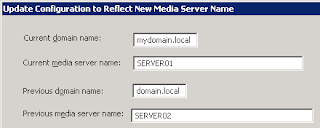
Start BEUtility.exe; Select SERVER02; Under Services Task click on the "Update Configuration for New Media Server Name"
Type in "Current domain name" field your.domain.name; in "Current media server name" SERVER01; in "Previous domain name" field your.domain.name; in "Previous media server name" SERVER02; Click on the OK
SERVER01 (old hardware): Windows 2003 x64 SP2, Symantec Backup Exec 11d SP3 fixes 47, 48
SERVER02 (new hardware): Fresh installation of Windows 2003 x64 SP2, Symantec Backup Exec 11d SP3 fixes 47, 48
Both servers are in Windows Domain.
OBJECTIVE: Copy (migrate) Backup Exec configuration from SERVER01 to SERVER02.
ISSUE: Standard Symantec's aproach How to copy media server configuration to a file and apply the copied media server configuration doesnot work. "Apply Copied Media Server Configuration" operation og BEUtility returns error: "The remote procedure call failed and did not execute"
SOLUTION:
Backup BEDB database on SERVER01 and copy the file to SERVER02
Copy from old to new server next folders: Catalogs, idr
Copy from old to new server *_someaccountname.xml files and BEDB.bak in Data folder.
Rename SERVER01 to SERVER01OLD and restart the server.
Check all changes in DNS
On SERVER02 change "Backup Exec Device & Media Service" service type to Disabled and stop one.
Restore BEDB database on SERVER02 with "Overwrite the existing database" options
Rename SERVER02 on new hardware to SERVER01 and restart the server.
Check all changes in DNS
On SERVER01 on new hardware change "Backup Exec Device & Media Service" service type to Automatic.
Start BEUtility.exe; Select SERVER02; Under Services Task click on the "Update Configuration for New Media Server Name"
Type in "Current domain name" field your.domain.name; in "Current media server name" SERVER01; in "Previous domain name" field your.domain.name; in "Previous media server name" SERVER02; Click on the OK
Open "Symantec Backup Exec 11d for Windows Servers" and check your Jobs, Policies, templates, selection lists, Logon information, Media sets etc.
On SERVER01 on new hardware change "Backup Exec Device & Media Service" service type to Disabled and stop one.
Rename SERVER01 on new hardware back to SERVER02 and restart the server.
Check all changes in DNS
On SERVER02 on new hardware change "Backup Exec Device & Media Service" service type to Automatic.
Start BEUtility.exe; Select SERVER01; Under Services Task click on the "Update Configuration for New Media Server Name"
Type in "Current domain name" field your.domain.name; in "Current media server name" SERVER02; in "Previous domain name" field your.domain.name; in "Previous media server name" SERVER01; Click on the OK
Open "Symantec Backup Exec 11d for Windows Servers" and check your Jobs, Policies, templates, selection lists, Logon information, Media sets etc.
Finaly rename SERVER01OLD on old hardware back to SERVER01 and restart the server.
Check all changes in DNS
On SERVER01 change "Backup Exec Device & Media Service" service type to Disabled and stop one.
Links: backup the index
TAGS: backup, Backup Exec, Symantec Backup Exec, Backup Exec copy, Backup Exec migration
Подписаться на:
Сообщения (Atom)

 Сообщения


